
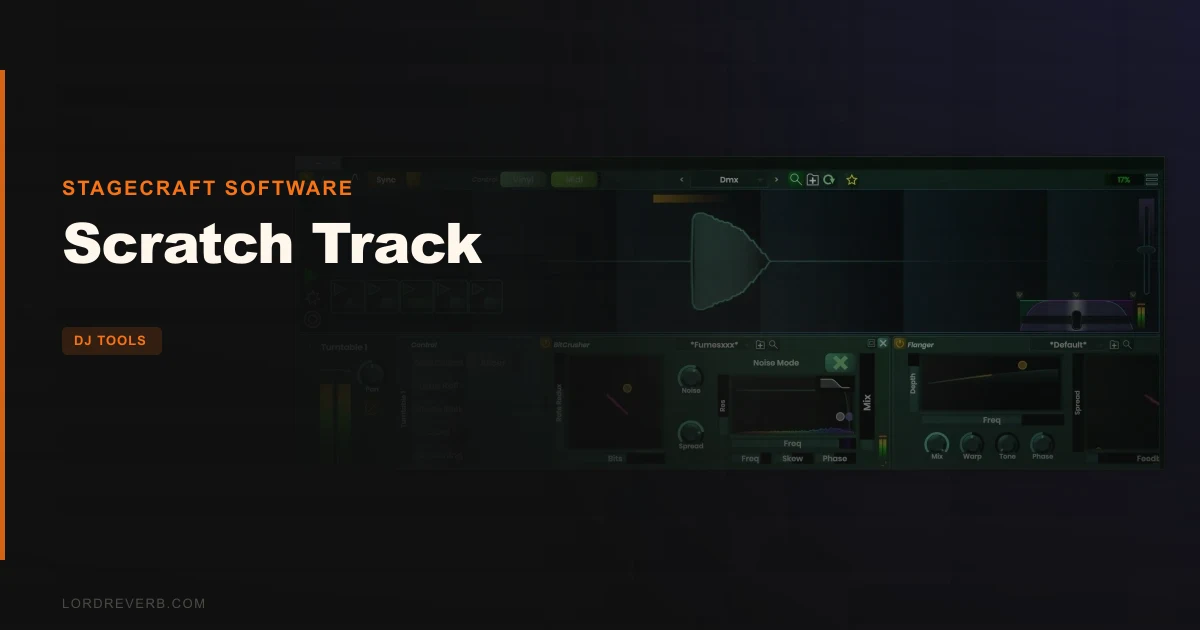
We loaded Scratch Track into Ableton, routed a vinyl signal through inputs 1 and 2, and sat there for about four minutes doing nothing. Not because the plugin was broken. Because the routing took that long to click. Once it did, we dropped the needle, and the sample responded. Clean, tight, genuinely reactive to the record. That part works. The frustration was everything surrounding it.
Scratch Track by Stagecraft Software is a DAW plugin built for one purpose: getting real turntable scratching into your recording sessions. It handles timecoded vinyl, live audio input, MIDI control, samples, and automation recording. It’s built for producers who want authentic scratch performance inside the box, without running a separate DVS setup.
What This Plugin Is Actually Doing
Scratch Track isn’t a scratch simulator. It doesn’t fake the movement with a joystick or pad controller and call it done. It reads timecoded vinyl signal from your turntable, interprets the physical needle movement, and uses that to scrub audio inside the DAW. That’s the real pitch here.
It also handles live input scratching. You record a few bars from a live mic or synth, and then immediately scratch that audio with the record. That’s a genuinely clever feature. We haven’t seen another plugin do it the same way.
What it’s not: a performance DJ tool. This isn’t built for a live set. It’s built for recording sessions and beatmaking workflows where you want scratch elements captured to a timeline.
It’s also not for producers who want a quick drop-in effect. The setup asks more of you than most plugins.
Living With It Day to Day
The first session was annoying. Genuinely annoying. Getting the vinyl input routed correctly requires reading the documentation, which isn’t bundled neatly inside the plugin. In Ableton, you select the incoming vinyl signal from the audio input dropdown. Simple once you know. Not obvious on first launch.
Once routed, the vinyl tracking felt responsive. We scratched a two-bar loop and the tracking didn’t ghost or drift. That’s the baseline requirement and it passes it.
The MIDI learn is where things got satisfying. Right-click any control, activate learn, move your controller. Done. We mapped the crossfader to a hardware fader in about 30 seconds. The crossfade curve is adjustable, and the latency on MIDI input is low enough that it doesn’t feel sloppy under a live hand.
The automation recording feature is the thing we kept coming back to. Record your scratch movement as automation data. Then go back, tweak the curve in the DAW, and replay it. You can invent scratches that aren’t physically possible on a record. That’s a genuinely smart workflow for producers who want turntable texture without a turntablist on the session budget.
The cue point juggling works too. Set programmable cue points in a sample and switch between them with a button. It’s functional. Nothing clever about the implementation, but it does the job.
The UI is where we wince every time we open it. It looks like it was designed in 2009 and hasn’t been touched since. That’s not gatekeeping aesthetics. It’s a practical issue. Controls are clustered, labels are small, and on a laptop screen it’s genuinely harder to read than it should be.
The Trade-Offs Worth Knowing
The live input scratching feature is the best reason to buy this plugin. No other tool we’ve tested does it the same way. You sing a line, you scratch it back immediately. For hip-hop producers layering live elements, that’s a real workflow advantage.
But you’re trading ease of setup to get it. Most producers will spend meaningful time on routing before they get a single scratch recorded. If you’re comfortable with audio interface routing and DAW signal flow, this is a one-time learning curve. If you’re not, it’ll feel like a wall.
The automation recording is similarly powerful and similarly demanding. It asks you to understand your DAW’s automation recording workflow before it pays off. The upside is worth it. The path there isn’t smooth.
The crossfader is the strongest component in the UI. Adjustable curve, low MIDI latency, professional feel. This is the one area where Scratch Track punches above its apparent budget.
The plugin format support is solid: VST3, AU, AAX, and a standalone version on both Mac and Windows. M1 Apple Silicon is supported. That’s a clean bill of compatibility health for 2026.
Against the Field
The closest comparison is Serato Scratch Live used alongside a DAW, but that’s a separate software ecosystem, not a plugin. Scratch Track wins for pure DAW integration. You’re not leaving your session.
DJ tools plugins guide covers this category well, and the honest answer is that Scratch Track sits in a niche with almost no direct competition. Most DJ tools in plugin format focus on performance effects. None we’ve found match the timecoded vinyl integration and live input combination.
If you don’t have a turntable and timecoded vinyl, look at iZotope Stutter Edit 2 for programmatic scratch-style effects. It’s a different tool built for a different workflow, but it’s more immediately accessible and lives entirely inside the box.
For MIDI-only scratching without vinyl, a pad controller with a plugin like DJ Turntable by Sugar Bytes covers that ground with a friendlier UI.
The Real Verdict
If you own timecoded vinyl and you’ve been frustrated trying to get it into your DAW recordings, Scratch Track solves that problem. It’s the most direct route we’ve found.
If you don’t own vinyl, or if you’re hoping this is a plug-and-play scratch effect, look elsewhere. The setup overhead makes no sense for casual use.
Check Plugin Boutique for current pricing before committing. This isn’t the most polished plugin we’ve tested, but in this specific use case, it’s the most functional one.
Score Breakdown
| Category | Score | Notes |
|---|---|---|
| Sound Quality | 4.0/5 | Vinyl tracking is clean and responsive with low drift |
| Value for Money | 3.5/5 | Depends heavily on whether you already own timecoded vinyl |
| Ease of Use | 2.5/5 | Routing setup is unintuitive; UI is cluttered and dated |
| Features | 4.0/5 | Live input, automation recording, and adjustable crossfader are genuinely strong |
| CPU Efficiency | 4.0/5 | Light footprint; doesn't compete with your other plugins for resources |
| Overall | 3.5/5 | Strong in its niche, rough around almost every other edge |
Alternatives to Consider
If the setup overhead of Scratch Track puts you off, these are worth a look.
Sugar Bytes DJ Turntable handles MIDI-based scratching with a far friendlier interface. No timecoded vinyl support, but if you’re working purely ITB it’s a cleaner experience. DJ tools plugins guide
iZotope Stutter Edit 2 isn’t a scratch tool in the traditional sense, but it produces scratch-style rhythmic effects from any audio source using MIDI. Useful for producers who want the texture without the hardware. stutter and glitch effect plugins
Serato DJ Pro with a DVS setup is the professional route if you want vinyl control at the highest level. It’s a separate software environment rather than a plugin, which is a real workflow cost. But the tracking and feature depth exceed what Scratch Track offers. DJ tools plugins guide
If you’re committed to keeping everything inside one DAW session with real vinyl control, none of those replace Scratch Track. That’s the honest situation.
The live input scratching alone is the reason we’d recommend it over building a workaround. We scratched a live vocal take back through the record within the same session. Nothing else let us do that. That one feature is worth the frustrating setup, if scratching is actually your workflow.
If it’s not, skip it.
Related reviews: Vol. 3 Earns Its Place
Frequently Asked Questions
Does Scratch Track work with all types of timecoded vinyl?
Yes. The plugin supports most major timecoded vinyl formats. You select your vinyl type from within the plugin's vinyl control panel after enabling the vinyl input. Check Stagecraft Software's documentation for a full confirmed compatibility list, as support can vary by version.
Can I use Scratch Track without a turntable?
You can use it with MIDI controllers for basic scratching, and it supports CDJ-compatible controllers and MIDI platters. But the timecoded vinyl integration is the main event here. Without a turntable, you're using a fraction of what the plugin offers. Sugar Bytes DJ Turntable is a better fit for a purely MIDI-based workflow.
What DAWs does Scratch Track work in?
It runs in any DAW that supports VST3, AU, or AAX, plus a standalone version. Ableton Live, Cubase, and Reaper are explicitly mentioned in the documentation. Routing setup steps vary by host, so read the vinyl setup guide for your specific DAW before your first session.
What is the live input scratching feature and how does it work?
Live input lets you route audio from inputs 3 and 4 into the plugin's scratch buffer in real time. You enable it by clicking the "live input" button in the UI. Once active, incoming audio appears in the waveform display immediately and can be scratched with the timecoded vinyl. If the stream falls out of sync, the "sync" button brings it back to current playtime.