
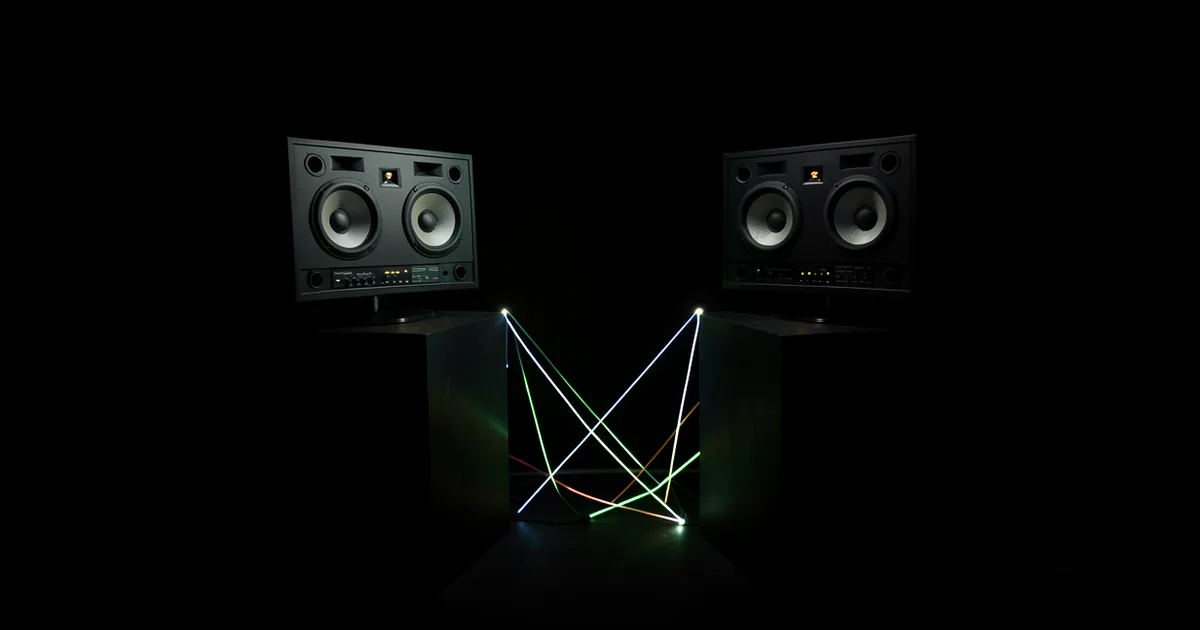
Your studio monitors sound different on your desk because the desk itself is acting as a reflective surface, adding boundary-effect bass boost and early reflections that arrive 5–20ms after the direct sound. That gap is short enough to color your perception of the mix without you realizing the desk is the culprit. Here’s how to fix it fast.
Why This Happens
Three separate physics problems are hitting you at once.
First, the boundary effect. When a speaker sits close to a wall or large flat surface, low frequencies build up by as much as 6dB. Your desk is that surface. The bigger and denser it is, the worse the buildup. You’re not hearing your mix accurately. You’re hearing your desk’s acoustic signature layered on top of it.
Second, early reflections off the desk surface. Sound leaves your tweeter, hits the desk, and bounces up into your ears 8–15ms late. Your brain blends it with the direct sound. The result: smeared stereo image, inflated low-mids around 200–400Hz, and a high-frequency shimmer that makes you cut highs you don’t actually need to cut.
Third, speaker-to-ear angle. Most people position monitors flat, pointing straight ahead. The sweet spot is typically 30 degrees of toe-in. Without that, you’re hearing off-axis response instead of the driver’s calibrated frequency curve.
We tracked this down the hard way once. Spent two sessions fighting muddy low-mids on an otherwise clean mix. Turned out the monitors were sitting 4 inches from the back wall. Moving them forward 10 inches dropped the 200Hz buildup by nearly 4dB. The mix cleared immediately. Frustrating that it was that simple.
The Fix: Step by Step
Step 1: Move Monitors Away From the Back Wall
Pull each monitor at least 8 inches from the wall behind them. 12 inches is better. 18 inches is the target if your desk allows it. Every inch forward reduces boundary bass buildup.
Step 2: Raise Them Off the Desk Surface
Place the monitors on . Desktop stands that lift the tweeter to ear level work too, but the goal is getting the cabinet off the desk. Coupling to the desk surface transfers cabinet vibration directly into the wood, adding resonance you didn’t mix in.
Step 3: Add Isolation Pads
If stands aren’t an option, put 1-inch foam isolation pads (IsoAcoustics Apexes, Auralex MoPADs, or similar) between each monitor and the desk. These break the mechanical coupling. You’ll hear more definition in the low-mids almost immediately. We’ve used Auralex MoPADs on half a dozen cheap desk setups. The difference is not subtle.
Step 4: Toe Them In
Angle each monitor 30 degrees toward your listening position. The tweeter axis should point at your ear, not the wall behind you. Use a protractor or a simple ruler from the listening position. Off-axis coloration at the high end adds a false brightness that makes mixes sound thin on other systems.
Step 5: Set the Right Distance
Place monitors so the distance between left and right speakers equals the distance from each speaker to your ears. For most desks this is 3–4 feet between speakers, 3–4 feet to your head. This is an equilateral triangle. It’s the sweet spot your monitors were designed for.
Step 6: Check the Desk's Reflection Point
Put a mirror flat on the desk surface. Sit in your mix position. If you can see either tweeter in the mirror, sound from that driver is reflecting off the desk into your ears. That’s a reflection point. Raise the monitors higher or angle them back slightly (2–5 degrees of tilt) to push that reflection out of your direct listening axis.
Step 7: Apply High-Pass Filtering on the Monitor's Built-In EQ
Most studio monitors have a rear-panel boundary EQ switch. If yours has a -2dB or -4dB shelf at 80–100Hz, use it. You’re not losing bass. You’re correcting for the boundary boost the desk is adding. On Yamaha HS series, it’s the “ROOM CONTROL” switch. On Adam Audio T-series, it’s the low-shelf trim. Use it.
If That Didn't Work
If you’ve done all seven steps and the sound still feels wrong, the problem may be broader.
Check your room’s dimensions. Parallel walls create standing waves at predictable frequencies. A room that’s 10 feet wide resonates at 56Hz. You can’t fix that with monitor placement alone. You need .
Check your gain staging. If your interface output is clipping into the monitors, the distortion sounds like colorful coloration but it’s just ugly saturation. Keep your interface output at 75–85% and use the monitor’s volume knob for the rest.
Also check the desk material. Glass desktops reflect high frequencies aggressively. Hard wood reflects more evenly. Felt or foam desk mats break up some of that surface reflection cheaply.
How to Prevent This
The annoying truth is that desk reflections come back if your setup moves. Treat the desk placement as permanent and document your monitor positions with measurements: distance from wall, distance apart, toe-in angle.
If you’re building a new setup, that attach to the wall behind your desk remove the desk coupling problem entirely. Your monitors never touch the desk surface. The improvement is satisfying enough that we’d never go back to desktop placement in a critical listening environment.
Add a 2-inch acoustic panel on the ceiling above the desk to handle first reflections from above. That closes the last obvious reflection path.
Related guides: studio signal chain guide
Frequently Asked Questions
How much bass boost does the boundary effect actually add?
A monitor sitting within 12 inches of a wall or large surface can add 3–6dB of low-frequency buildup, typically centered between 80–200Hz. That's enough to make your mix sound full in the studio and thin everywhere else. Moving the monitor 18 inches from the boundary or using the built-in boundary EQ filter brings it back in line.
Do isolation pads make a big difference or are they a waste of money?
We'd call them one of the highest-value fixes in a desktop setup. A $30 pair of foam pads breaks the mechanical coupling between the monitor cabinet and the desk, which removes added resonance from the desk's own vibration. The difference is most obvious in the 150–400Hz range. We've heard cleaner separation on snare and bass within 30 seconds of installing them.
My monitors have a rear-panel EQ. Which setting should I use?
If your monitors are on a desk near a wall, start with the -2dB low-shelf setting (usually labeled "DESK" or "-2dB"). If they're also close to side walls, add the -2dB high-mid cut if your monitor offers it. Don't stack cuts blindly. Make one adjustment, sit with it for 15 minutes of material you know well, and judge from there.